Motivating scenario: You have data and you want to get it into R so you can start analyzing them.
Learning goals: By the end of this chapter you should be able to
Load Excel and CSV files into R from a web link.
Make an R Project, and open up R Studio via an R Project.
Load data into R from your computer.
A tough part of R is that the first thing you need to do is not necessarily the easiest thing to do. This is clear with loading data. Getting data from a spreadsheet into R requires a bunch of R and computer skills. To load data into R, you must understand a few topics from the first chapter of our intro to R - specifically the idea of variable assignment, and using functions from packages.
The even bigger challenge is knowing how to point R to your data. This can be a challenge as it (used to) involve understanding the structure of folders on your computer etc. Luckily, the best practices in reproducible analyses actually make it easier to tell R how to find the specified data on your computer. Below, I introduce how to read data into R with the read_csv() and read_excel() functions from the readr and readxl packages, respectively.
I start with the easiest case of reading files from the internet.
I then introduce the idea of folder organization and R projects which makes it both easier to load data from your computer into R, and for your code to work on another person’s computer.
Finally, I introduce how to combine these tools to load data into R from your computer.
Loading data
The first step of loading data into R is knowing what kind of data file you’re dealing with. There are many different types of files, that R can load, but most likely you’re dealing with a .csv file or a .xlsx file:
The simplest data file format is a .csv. Load a .csv with the read_csv() function in the readr package. To install, enter install.packages("readr") into the console.
The most common way we get data is an Excel .xlsx file. Load a .xlsx file with the read_excel() function in the readxl package. To install, enter install.packages("readxl") into the console. You may see old material saying that R needs a .csv. That is wrong.
So I would load data into R as follows:
read_csv() is not the only way to load a csv file into R. You will see many people use the base R function, read.csv(). I prefer readr’s because it loads data as a tibble. This has numerous helpful features. Here’s a quick introduction to tibbles if you want to know more and how they differ from traditional data frames.
Use the code below as an example of how to load a .csv. Make sure the readr package is installed.
# Reading in .csv data from a web link# Load packageslibrary(conflicted)library(readr)path <-"https://raw.githubusercontent.com/ybrandvain/datasets/refs/heads/master/clarkia_rils.csv"ril_data <-read_csv(path)
Rows: 593 Columns: 17
── Column specification ────────────────────────────────────────────────────────
Delimiter: ","
chr  (5): ril, location, growth_rate, petal_color, crossDir
dbl (12): prop_hybrid, mean_visits, petal_area_mm, date_first_flw, node_firs...

ℹ Use `spec()` to retrieve the full column specification for this data.
ℹ Specify the column types or set `show_col_types = FALSE` to quiet this message.
Use the code below as an example of how to load a .xlsx. Make sure the readxl package is installed.
# Reading in .xlsx data from a web link# Load packageslibrary(conflicted)library(readxl)path <-"https://raw.githubusercontent.com/ybrandvain/datasets/refs/heads/master/clarkia_rils.xlsx"ril_data <-read_excel(path)
read_excel() has an optional argument called sheet, which allows you to specify the sheet in the excel file you want to load.
R Projects
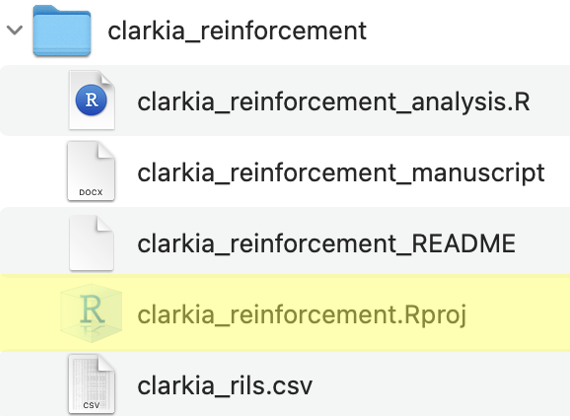
Figure 1: Project folder showing an R project file (.Rproj) alongside scripts, data, and documents, illustrating a reproducible project structure. This is a slight modification of the figure from the previous subsection. Here, the .Rproj file is highlighted.
While data often exist online, in your actual analyses, the data are more likely to exist on your computer. Loading data from your computer presents both challenges and opportunities. The greatest opportunity is that it facilitates developing great habits for file organization and reproducibility. The best habit I have developed is pairing best practices for structuring folders with the use of an R project.
What is an R project? An R project makes it easy to recreate your analyses because it points R to this location. If you look closely at the folder structure presented in the previous section, you can see a .Rproj file, highlighted in Figure 1.
So the first step towards reproducible analyses is making an R project. I do this by clicking “File” > “New Project” and I usually use an existing directory (Navigating to the folder with my data and data dictionary that we just made).
Now every time you use R to work on these data, open R by double clicking on this project (or if R is already open, navigate to “Open Project”).
Loading data from your computer
Now your data live in a well organized folder (or subfolder) with an R project. This now makes loading data from your computer into R pretty simple! You simply change the “path” argument (that used to be the web address) to the (relative) path to your file:
If your folder looks like Figure 1, your path is clarkia_rils.csv, and you would load it as e.g., ril_data <- read_csv("clarkia_rils.csv").
If your data are in a data subfolder, type data/<filename.filetype> (e.g. read_csv("data/mydata.csv")).
Swap from read_csv() to read_excel() if you have a .xlsx file.
Use relative paths.
A relative path means we have a very short path to the data, and that path is relative to the .Rproj file. Importantly a relative path will work on anyone’s computer that has this folder.
You may see people use an absolute path (e.g., “~/Users/ybrandvain/Desktop/clarkia_reinforcement/clarkia_rils.csv”). This will work on my computer but not yours. So it makes sharing difficult.
You may also run into code using the setwd() function. This is a way to navigate paths on your computer, but it can behave unpredictably on someone else’s machine. By contrast, the .Rproj framework essentially sets this path for you without the potentially bad side effects.