• 3. Check & prep data

Motivating scenario: You got your data into R and are preparing for data analysis.

Learning goals: By the end of this chapter you should be able to

  • Describe why you should never edit your data sheet.
  • Use dplyr’s glimpse() function to get a sense of your data sheet.
  • Have a look at your data in R with dplyr’s View() function.
  • Clean all column names with janitor’s clean_names() function.
  • Explicitly rename specific columns with dplyr’s rename() function.

A decorative figure

CONGRATS! you got your hard-fought data into R!!!!

If you’re lucky (or better said, if you and your collaborators carefully entered data and structured your data sheet in a way to make coding easy), you are ready to go! Unfortunately, it’s more likely you might be disappointed to see that it’s still a pain to work with these data. The remainder of this section and the next will help you get your data ready to analyze.

Here we introduce our first steps to look into our data, and to lightly modify how R “sees” your spreadsheet to make your analyses easier. In this subsection, I introduce the key functions and packages I use to get to know and manage data sheets. The two key packages here are dplyr and janitor, so be sure to install them now!

Best practices for managing data in R

Raw data sheets are often imperfect. Names might be inconsistent or inconvenient. Data might be entered wrong etc etc etc. While this is true, you should never edit a data sheet, as that could remove the initial data and obscure what you did to it. Rather, you should manage data in a reproducible R script!

Never edit your raw data.

In this subsection I introduce key functions and packages. But because the whole point of this practice is to have a reliable record of what happened to the data, you should follow the best practices of writing reproducible scripts. Towards that end, the next subsection shows a suggested workflow and structured R script for managing data.

# loading packages
library(dplyr)
library(conflicted)
library(praise)
library(readr)

# loading data
path     <-  "../../data/clarkia_rils.csv"
#path     <- "https://raw.githubusercontent.com/ybrandvain/datasets/refs/heads/master/clarkia_rils.csv"
ril_data <- read_csv(path)
Rows: 593 Columns: 17
── Column specification ────────────────────────────────────────────────────────
Delimiter: ","
chr  (5): ril, location, growth_rate, petal_color, crossDir
dbl (12): prop_hybrid, mean_visits, petal_area_mm, date_first_flw, node_firs...

ℹ Use `spec()` to retrieve the full column specification for this data.
ℹ Specify the column types or set `show_col_types = FALSE` to quiet this message.

Peeking at data in R

After loading your data with read_csv(), R will provide some information about these data (see output on the right). Specifically it will list the different “classes” of data in the columns, and show the names of the first few columns in each class. This is a great start, but provides a limited view of your dataset.

dplyr’s glimpse() function reveals the class of data in each column and the values for the first few individuals. I often use this function to better get to know my data. But this SHOULD NOT be a part of your saved script - it helps you but could annoy a reader.

Rows: 593
Columns: 17
$ ril                 <chr> "A1", "A100", "A102", "A104", "A106", "A107", "A10…
$ location            <chr> "GC", "GC", "GC", "GC", "GC", "GC", "GC", "GC", "G…
$ prop_hybrid         <dbl> 0.000, 0.125, 0.250, 0.000, 0.000, 0.125, NA, 0.00…
$ mean_visits         <dbl> 0.0000, 0.1875, 0.2500, 0.0000, 0.0000, 0.0000, NA…
$ growth_rate         <chr> "1.272", "1.448", "1.8O", "0.816", "0.728", "1.764…
$ petal_color         <chr> "white", "pink", "pink", "white", "white", "pink",…
$ petal_area_mm       <dbl> 43.95220, 55.78633, 51.70312, 57.28095, 68.55464, …
$ date_first_flw      <dbl> 95.38681, 96.75742, 97.95671, 95.21548, 96.75742, …
$ node_first_flw      <dbl> 20.51416, 25.26508, 24.91316, 15.58727, 18.40264, …
$ petal_perim_mm      <dbl> 43.07237, 43.84228, 47.29937, 47.01340, 55.71933, …
$ asd_mm              <dbl> 0.4466794, 1.0730412, 0.6744473, 0.9591572, 1.4146…
$ protandry           <dbl> 1.2812553, 1.1107347, 0.9402142, 1.2812553, 2.8159…
$ stem_dia_mm         <dbl> 1.924, 2.328, 2.422, 1.826, 1.890, 1.954, 2.120, 1…
$ lwc                 <dbl> 0.8311, 0.8376, 0.8421, 0.8236, 0.8249, 0.8316, 0.…
$ crossDir            <chr> "A", "A", "A", "A", "A", "A", NA, "A", "A", "A", "…
$ num_hybrid          <dbl> 0, 1, 2, 0, 0, 1, NA, 0, 0, 2, 0, NA, NA, 1, 0, NA…
$ offspring_genotyped <dbl> 8, 8, 8, 8, 8, 8, NA, 8, 8, 8, 8, NA, NA, 8, 8, NA…

dplyr’s View() function opens up a new window in R (as a tab in the pane with your script) showing the complete data sheet. Again, I use this regularly but you should never include it in a saved R script. If someone wants to View the data they can - they don’t need to know that you did.

Cleaning column names

R makes it very hard to work with column names that start with a number or include most punctuation (! @ # $ % ^ & * ( ) - + = { } [ ] |  : ; ” ’ < > , ? / ~, or a space). It is also a waste of your mental faculties to remember if a column name included a capital or not, and/or if words in a column name are separated by a period or an underscore. The clean_names() function in the janitor package makes column names standard (all lower case and separated by an underscore) and legally valid. Expand the box below for an example:

We will try this out on the iris data set built into R. Note that I reassigned the output of clean_names(iris) to iris to make the new names stick. Remember that the janitor package must be installed and loaded.

Rows: 150
Columns: 5
$ Sepal.Length <dbl> 5.1, 4.9, 4.7, 4.6, 5.0, 5.4, 4.6, 5.0, 4.4, 4.9, 5.4, 4.…
$ Sepal.Width  <dbl> 3.5, 3.0, 3.2, 3.1, 3.6, 3.9, 3.4, 3.4, 2.9, 3.1, 3.7, 3.…
$ Petal.Length <dbl> 1.4, 1.4, 1.3, 1.5, 1.4, 1.7, 1.4, 1.5, 1.4, 1.5, 1.5, 1.…
$ Petal.Width  <dbl> 0.2, 0.2, 0.2, 0.2, 0.2, 0.4, 0.3, 0.2, 0.2, 0.1, 0.2, 0.…
$ Species      <fct> setosa, setosa, setosa, setosa, setosa, setosa, setosa, s…
Rows: 150
Columns: 5
$ sepal_length <dbl> 5.1, 4.9, 4.7, 4.6, 5.0, 5.4, 4.6, 5.0, 4.4, 4.9, 5.4, 4.…
$ sepal_width  <dbl> 3.5, 3.0, 3.2, 3.1, 3.6, 3.9, 3.4, 3.4, 2.9, 3.1, 3.7, 3.…
$ petal_length <dbl> 1.4, 1.4, 1.3, 1.5, 1.4, 1.7, 1.4, 1.5, 1.4, 1.5, 1.5, 1.…
$ petal_width  <dbl> 0.2, 0.2, 0.2, 0.2, 0.2, 0.4, 0.3, 0.2, 0.2, 0.1, 0.2, 0.…
$ species      <fct> setosa, setosa, setosa, setosa, setosa, setosa, setosa, s…

As discussed earlier, it’s best to have descriptive column names that are not too long. clean_names() cannot do this for us. But we can manually reassign names with dplyr’s rename() function. The code below renames the petal_area_mm column in ril_data to petal_area.

library(dplyr)
library(readr)

# loading data
path     <- "https://raw.githubusercontent.com/ybrandvain/datasets/refs/heads/master/clarkia_rils.csv"
ril_data <- read_csv(path) |>        #pipe data
  rename(petal_area = petal_area_mm) #rename(new_name = old_name)

Optional extras

Tidying data

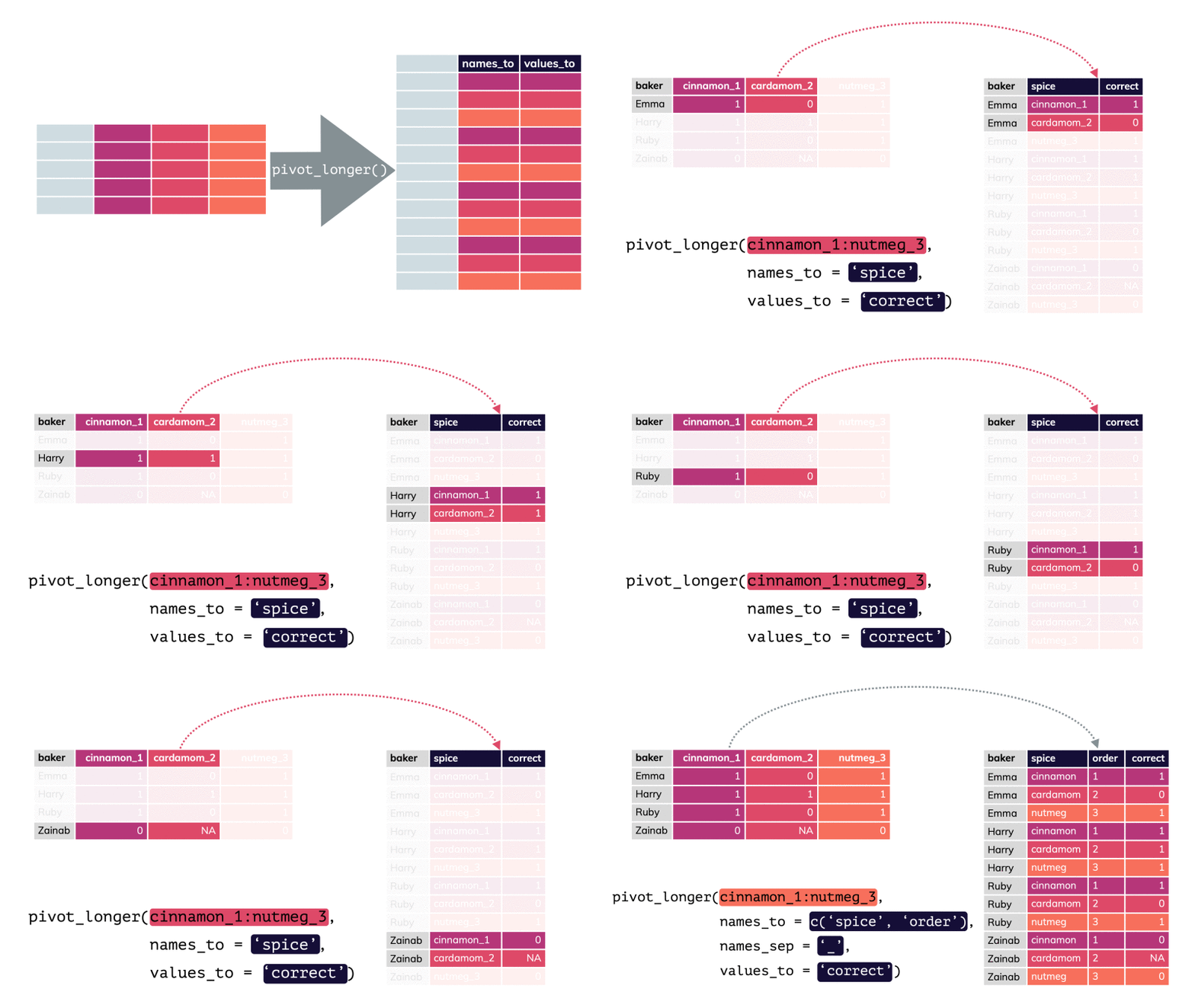
We have previously seen that it’s easiest to analyze tidy data, but not all data are tidy. While there are many ways for data to be untidy, one common untidy data format is the “wide format.” You can use the pivot_longer() function in the tidyr package, to tidy such data (Figure 1).

pivot_longer can convert wide-formatted data to long format.
Figure 1: A demonstration of converting from wide to long format with pivot_longer(). From the Simon Schölzel’s slide show Machine learning in R: Introduction to the tidyverse.

See this webpage for more information.

Selecting columns

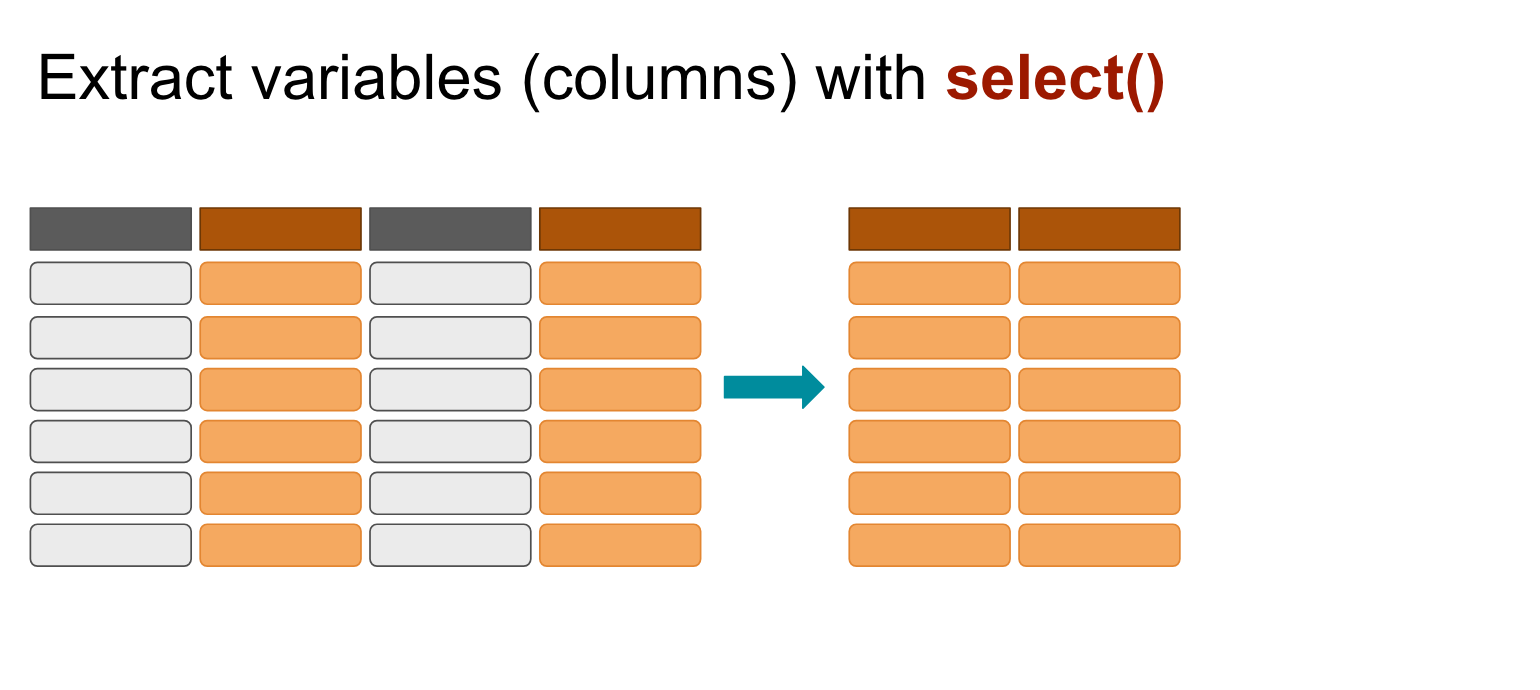
Sometimes we want to pare down a dataset with many columns to only look at a few columns of interest. Say we only wanted the location prop_hybrid mean_visits and petal_color columns from ril_data. We can accomplish this with dplyr’s select() function (see Figure 1):

library(dplyr)
library(readr)

# loading data
path     <- "https://raw.githubusercontent.com/ybrandvain/datasets/refs/heads/master/clarkia_rils.csv"
ril_data <- read_csv(path) |>        #pipe data
 select(location, prop_hybrid, mean_visits, petal_color) 

glimpse(ril_data)

Rows: 593
Columns: 4
$ location    <chr> "GC", "GC", "GC", "GC", "GC", "GC", "GC", "GC", "GC", "GC"…
$ prop_hybrid <dbl> 0.000, 0.125, 0.250, 0.000, 0.000, 0.125, NA, 0.000, 0.000…
$ mean_visits <dbl> 0.0000, 0.1875, 0.2500, 0.0000, 0.0000, 0.0000, NA, 0.0000…
$ petal_color <chr> "white", "pink", "pink", "white", "white", "pink", NA, "wh…
dplyr's select function allows you to choose the columns you want to deal with.
Figure 2: The idea of selecting columns.